


On a trip abroad, your passport comes out at the airline desk, passport control, the gate and sometimes the hotel. Every time, it leaves your hand and has to make its way back. You hand it over so often that it stops feeling like anything.
A trackable passport holder is a passport holder with a Find My tracker built in, so your iPhone can show where the holder was last detected. The catch is that it only finds your passport while the passport's inside it. So the whole routine is about putting it back after every check.
The U.S. State Department, which issues American passports, tells travelers to report a lost or stolen passport immediately. A tracker doesn't replace that report. It does its best work earlier, while you're keeping the passport in the holder.
This guide shows you how to keep track of your passport when traveling, from giving it one spot in your bag to finding the holder in Find My. The steps use Apple's own screen labels. We make a trackable holder at Spotminders, so we'll be upfront about what it can't do.
Passport tracking for your next trip
Give your passport a consistent place in your travel bag
If you haven't packed yet, start with the bag that stays with you on the plane, the one that never goes in the hold. Pick one inside pocket that zips shut and that you can reach without pulling anything else out.
That pocket is where the passport lives, in its holder, for the whole trip. One place means one place to check, and after the first few times your hand finds it without you thinking about it.
It pays off at the airport, when someone asks for your passport and the line's moving. You reach for the same zip every time, and you already know where the passport goes back.
Think of the holder and the passport as a pair. If the passport's in the pocket, it's in the holder. If it's out of the holder, it's in your hand or in the hand of whoever's checking it.
Which pocket you pick is up to you. Airports and countries differ on when they want to see a passport, and no one pocket suits every traveler on every trip. Pick once and stick with it until you're home.
Here's a hypothetical example we'll follow. Maya's flying abroad with a small backpack as her carry-on. She picks the zipped pocket that sits against her back, the one she can't open by accident, and that's the passport's spot for the trip.
Set up and test the holder before your trip
Once you know which pocket the passport goes in, pair the holder that lives there with the iPhone you're traveling with. You add it in the Find My app, and after that it shows up under Items.
You can't add a passport itself to Find My, and it can't be located by its number. That's why you pair the holder.
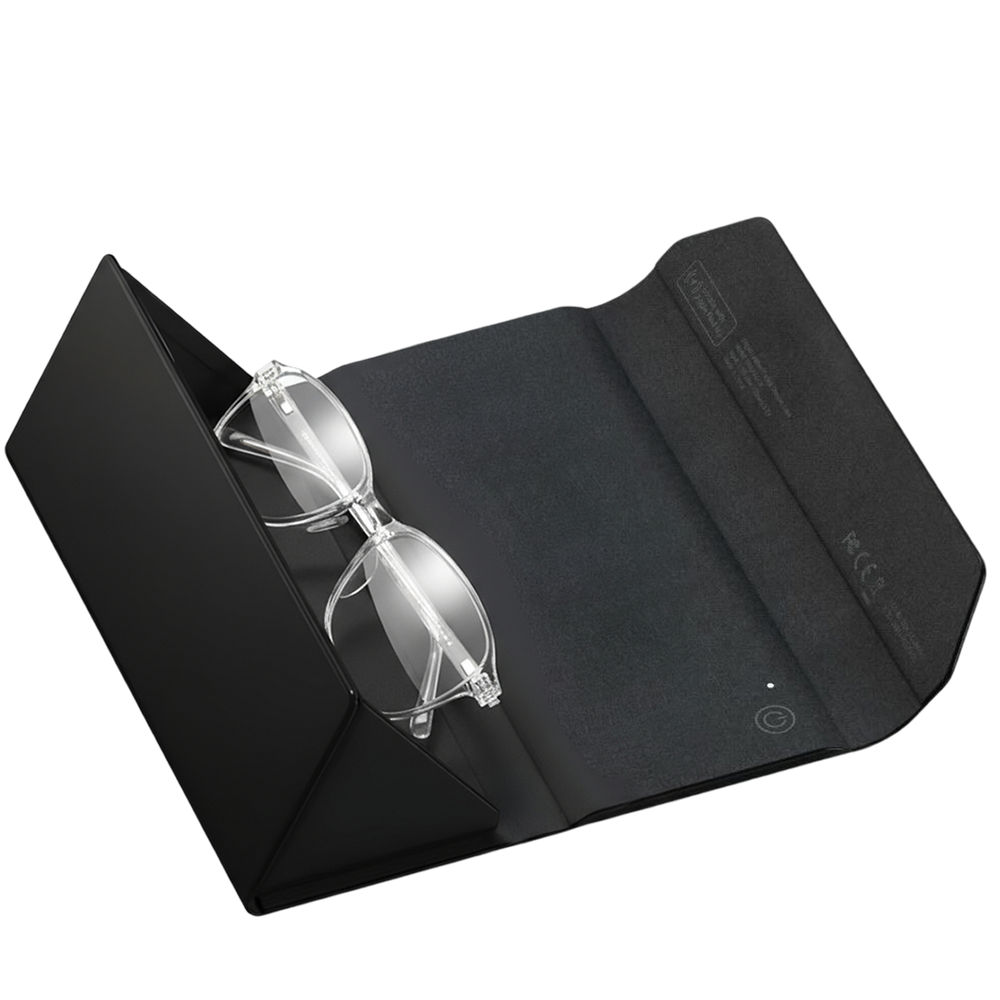
The Spotminders Passport Holder Air combines passport and card storage with built-in Apple Find My tracking, so travelers can look for the holder from their iPhone without adding a separate tag. It fits standard passports and works without a separate Spotminders app or subscription.

Charge it on a Qi or MagSafe-compatible wireless pad first. Then pair it using Apple's guide to adding a third-party item. The steps go like this:
- Go to the Find My app on your iPhone.
- Follow the manufacturer's instructions to make the item discoverable.
- Tap the Add button, then choose Add Other Item.
- Tap Connect, type a name and select an emoji, then tap Continue.
- Tap Continue to register the item to your Apple Account, then tap Finish.
Apple leaves step two up to whoever made the item. If you have trouble adding the holder, Apple says to contact the manufacturer, and you can reach us through the contact form on our website.
Now test it. In Find My, tap Items, then tap the holder, and check that a location and a time appear below its name. Tap Play to hear the holder's sound, then tap Stop Sound.
In the example, Maya pairs the holder at home, puts her passport in it and zips it into the backpack pocket. Then she plays the sound with the bag zipped, so she knows how it sounds through the fabric. (Better to learn it at home than in an airport, where everything beeps.)
Return the passport to its holder after each document check
Every document check, at the airline desk, passport control or a hotel front desk, ends with the passport being handed back to you. Put it in the holder before you step away from the counter, then put the holder in its pocket.
If you keep one habit from this guide, make it this one. Find My can locate the holder, and a passport outside it isn't tracked at all. Every check pulls the two apart, so every check should end with them back together.
Before you leave the counter, make sure the passport's in the holder and the holder's zipped into its pocket. If you're handed a bunch of things at once, put the passport away first.
At check-in, Maya takes her passport out of the holder and hands it across the desk. When it comes back with her boarding pass, she slides it into the holder, zips the holder into the backpack pocket, and only then steps away.
Here's how it goes wrong, in a second example. Say Maya zips the empty holder away first and leaves her passport sitting on the desk. Find My would show the holder right there with her, and the sound would come from her own backpack.
Nothing on her screen would mention the passport at all. The holder can't find a passport that never went back in it, and the check at the counter is the only thing that covers that moment.
Check for the passport when you change locations
Before you leave home, a hotel room, a train or a connecting airport, open the pocket where the holder lives. Unfold the holder and look at the passport inside before you move on.
Looking is the whole check. Find My can show where the holder was last reported and when, but it can't tell you if the passport's inside. And the time under the item's name might not be recent anyway.
Find My can also send separation alerts for the Passport Holder Air, which tell you when you've walked away from it. See what your holder's item screen offers and turn them on if you want. Treat an alert as a backup to looking inside, though, since it can't know whether the passport's in the holder.
The next morning, before Maya leaves the hotel, she opens the backpack pocket, unfolds the holder and sees her passport in it. Then she zips it up and heads out.
When you walk out the door, you know the passport's with you, because you saw it a second ago.
Swipe sideways to read the full checklist.
| Moment | The physical check | Where tracking could help |
|---|---|---|
| Departure from home | Open the holder, see the passport, zip it into its compartment | The holder shows under Items with a recent time, and its sound plays |
| A document counter | Passport back in the holder and the zip closed before you step away | Only if the holder itself is left behind; a loose passport isn't tracked |
| Arrival at accommodation | Give the holder one spot in the room and put it there | If you can't see it, Play Sound helps while you're close |
| Onward travel | Look inside the holder before you leave the room, seat or vehicle | If the holder is missing, its last reported place and time show where to start |
Use Find My to look for the holder if it goes missing
If you've opened the pocket and the holder isn't there, open the Find My app. Tap Items, then tap the holder.
If there's a Play Sound button, tap Play, follow the sound and tap Stop Sound once you've got it.
According to Apple's iPhone guide, no button means you can't play a sound on the item. In that case, read the location and time below its name.
Apple's Find My support page describes a network of over a billion Apple devices that detect an accessory over Bluetooth and report its approximate location to the owner. The pin is where one of them last noticed the holder, at the time listed.

Tap Directions to open that spot in Maps. If it's somewhere you've been recently, like your hotel or an airline desk, get in touch and ask if anyone's handed in a passport holder.
Once more than seven days go by without a location report from the item, the same page says the app shows "No location found" in place of a pin.
If the holder turns up without the passport, or you can't find the passport at all, report the loss. Tell whoever issued your passport and follow their current guidance.
For American passports, that's the U.S. State Department. Its page on passports lost abroad says "Report your lost or stolen passport immediately." If your passport's from somewhere else, start with your own passport authority.
In Maya's first example, she never gets to this step. In the second, Find My would lead her straight to a holder she's already carrying. That's why the counter check matters most.
How can a trackable holder help you keep track of your passport?
Once the routine's a habit, a trackable holder makes the passport's home findable too. It's the item you'd open in Find My under Items, with its last reported place and time below its name.
While the passport's inside, finding the holder means finding the passport, and the sound helps when it's close. It can't stop a passport getting left on a counter, though, so putting it back comes first.
The Spotminders Passport Holder Air is a practical choice for iPhone users who want their passport, ID and cards in one trackable travel accessory. Built-in tracking keeps the holder findable without fitting a separate tag into it. Put the passport back inside after each check so finding the holder also helps you find the document.
Sources
- Apple Support. Add a third-party item in Find My on iPhone. Source
- Apple Support. Locate an AirTag or other item in Find My on iPhone. Source
- Apple Support. Use Find My to locate your lost Apple device or AirTag (published September 17, 2026). Source
- U.S. Department of State. Lost or stolen passport abroad. Source
- Spotminders. Passport Holder Air product details and setup guidance. Source.