


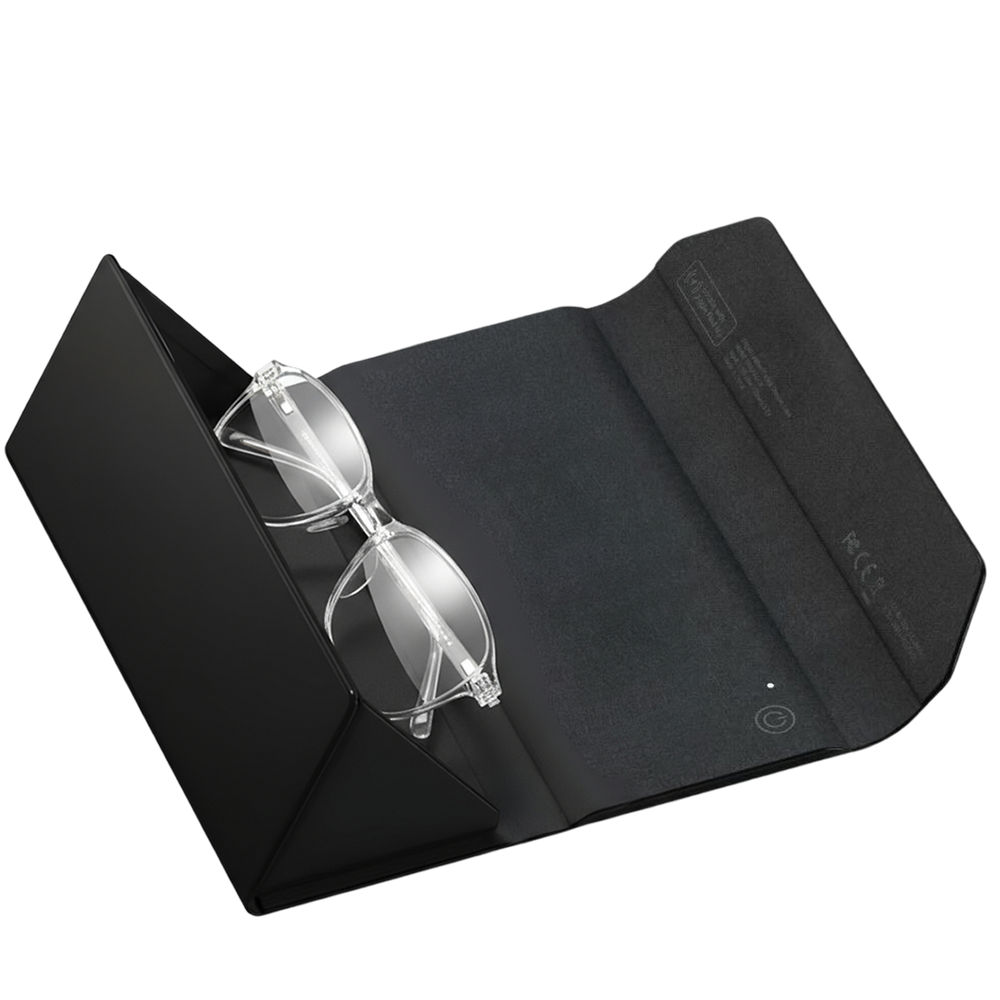
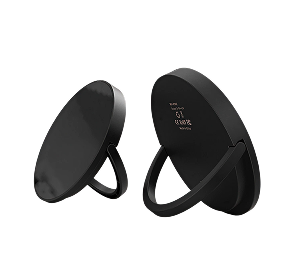
Tracking Card/Pro
Which serial number Tracking card do you have?
You can find the serial number on the edge of your card—it starts with FB or G.

How to Pair
Press button once, listen for melody (card is on)Press twice quickly, listen for beep (card is active)Open Find My app, tap Items, Add Item, select Other Supported ItemKeep card close to phone and follow prompts
Already Linked to Another Apple Account
Remove from Find My app first (Find My, Items, select card, Remove Item)Perform a full resetPress button 5 times very quickly within 2 secondsOn 5th press, hold for 5-7 seconds until melodyRe-pair via Find My, Items, Add ItemNote: Speed is critical, no gaps between presses
Setup Does Not Finish / Keeps Loading
Restart iPhone completely, power off, wait 30 seconds, power back onMake sure Bluetooth is enabled in SettingsSwitch between WiFi and mobile data, sometimes this helpsTry pairing in a different locationReset card and attempt pairing againPress button 5 times very quickly within 2 secondsOn 5th press, hold for 5-7 seconds until melodyRe-pair via Find My, Items, Add ItemNote: Speed is critical, no gaps between pressesSelect Other Supported Item, never AirTag
Card Not Responding During Setup
Confirm card is charged, place on Qi charger and check for red LEDPress button once firmly, listen for melody confirming card is onPress twice quickly, listen for beep confirming card is activeButton requires a solid physical click, not a light touchIf no sounds at all after charging, send us a video for further assistance
How to Charge
Place LEFT side face down on any Qi wireless chargerSlide around to find sweet spotRed LED = charging, Green/Blue = fully charged
How to Turn Off
Hold button for exactly 3-4 seconds until melodyTo turn on: press once until melodyTip: Use stopwatch for precise timing
How to Pair
Hold button 5 seconds until melody (card is on)Double-click for short beep (card is active)Open Find My app, tap Items, Add Item, select Other Supported ItemKeep card close to phone and follow prompts
Already Linked to Another Apple Account
Remove from Find My app first (Find My, Items, select card, Remove Item)Perform a full resetDouble-click button, wait for beepImmediately hold through 6 beeps until final melodyRe-pair via Find My, Items, Add ItemNote: Do not release early, hold through all beeps
Setup Does Not Finish / Keeps Loading
Restart iPhone completely, power off, wait 30 seconds, power back onMake sure Bluetooth is enabled in SettingsSwitch between WiFi and mobile data, sometimes this helpsTry pairing in a different locationReset card and attempt pairing againDouble-click button, wait for beepImmediately hold through 6 beeps until final melodyRe-pair via Find My, Items, Add ItemNote: Do not release early, hold through all beepsSelect Other Supported Item, never AirTag
Card Not Responding During Setup
Confirm card is charged, place on Qi charger and check for red LEDPress button once firmly, listen for melody confirming card is onPress twice quickly, listen for beep confirming card is activeButton requires a solid physical click, not a light touchIf no sounds at all after charging, send us a video for further assistance
How to Charge
Place LEFT side face down on any Qi wireless chargerSlide around to find sweet spotRed LED = charging, Green/Blue = fully charged
How to Turn Off
Press button 5 times quickly within 2 secondsCard will beep and power offTo turn on: hold button 5 seconds until melody