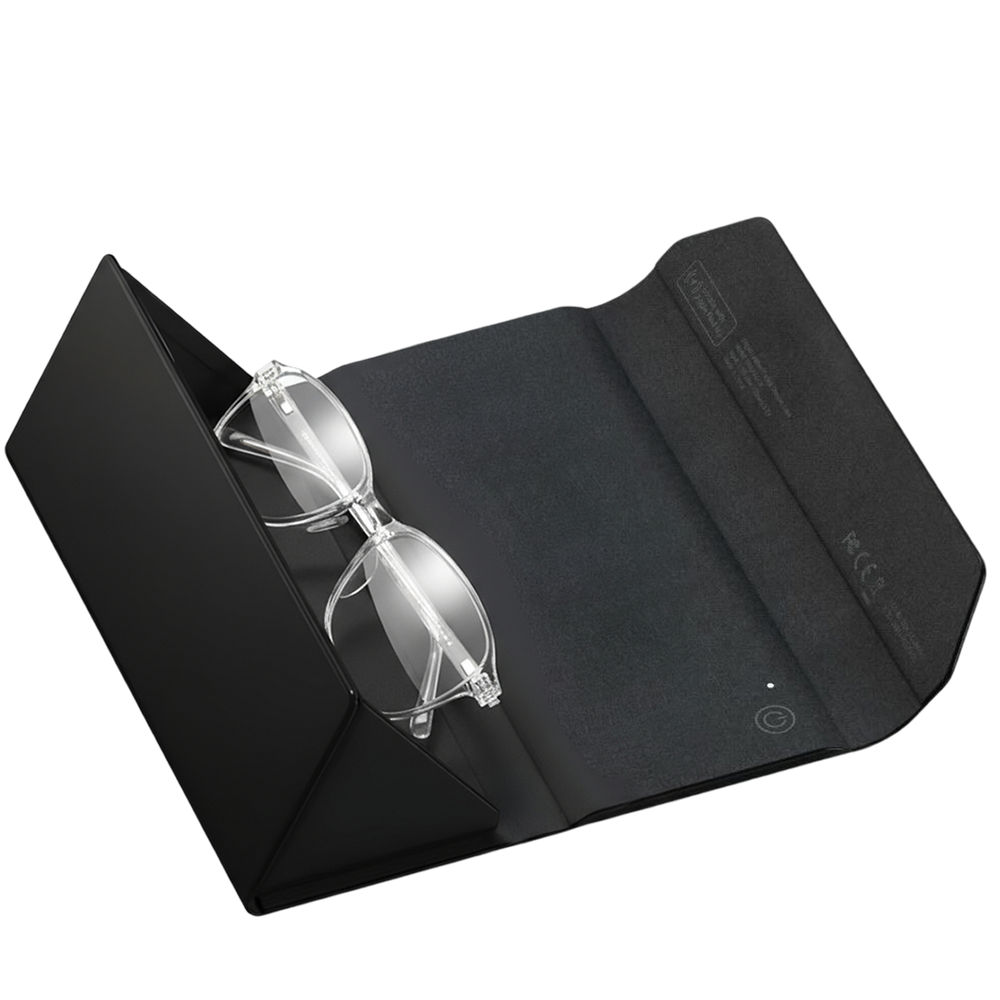
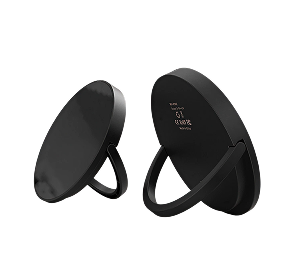


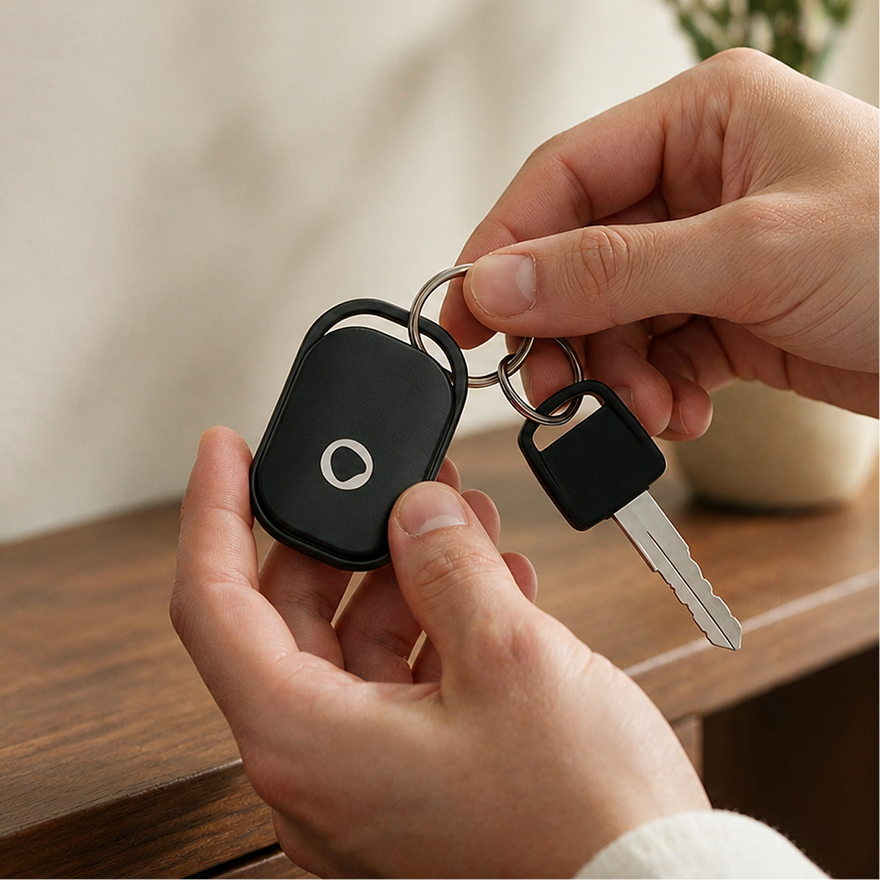




Connect in 4 steps

Instructions
- Open the green Find My app on your iPhone or iPad.
- Tap Items in the bottom navigation.
Do not open Settings. You will not find “Add Item” there.
Success
You are ready when the Items screen is open.
Try these steps:
- Make sure you're using the Find My app, not Settings.
- Turn Bluetooth on.
- Update your iPhone to the latest version of iOS if available.
Still not working? Restart your iPhone and try again.

Instructions
- On the Items screen, Tap the + button.
- Then tap Other Item.
- Keep your Luggage Tag close to your phone while Find My searches.
Success
Continue to Step 3 while Find My searches.

Instructions
- Locate the power button in the bottom-right corner.
- Press it firmly until you feel a physical click.
- Keep holding for 5 seconds and release when you hear the startup melody.
- When Luggage Tag appears, tap Connect.
- Follow the on-screen instructions to finish setup.
Success
Your Trackable Luggage Tag is connected and listed under Items.
Try these steps:
- Press the button firmly for five seconds.
- You should feel a physical click and hear the startup melody.
- If nothing happens, place the Luggage Tag on a wireless charger for 15–30 minutes.
- Try turning it on again.
No startup melody? Press the button twice very quickly. A short sound confirms the Luggage Tag is on.
Heard the melody, but the Luggage Tag does not appear in Find My?
Reset the Luggage Tag and try again. See how to reset it. Then try pairing it again.

Instructions
- Open your Trackable Luggage Tag inside Find My.
- Tap Play Sound.
- Confirm your Trackable Luggage Tag makes a sound.
- Confirm its location appears on the map.
- Place it securely inside your wallet, bag or chosen item.
Success
Your Trackable Luggage Tag is connected and ready to use.
Try these steps:
- Check under Items in Find My, not Devices.
- Move closer before using Play Sound.
- Wait a few minutes and try again.
Still not working? Restart your iPhone and try again.
Using your Trackable Luggage Tag
Learn what the feature does and how to set it up.

Get alerted when you walk away without your Trackable Luggage Tag.
- Open Find My and select Items.
- Select your Trackable Luggage Tag.
- Scroll to Notifications.
- Tap Notify When Left Behind and switch it on.
- Under "Notify Me, Except At", add home or other trusted locations where alerts are not needed.

Share access when another person may carry the item. This helps them locate it and prevents unnecessary alerts.
- Open Find My and select Items.
- Select your Trackable Luggage Tag.
- Scroll to Share Item and tap Add Person.
- Select the family member and send the invitation to the Apple ID they use for Find My.
- Ask them to accept the invitation in their Find My app.
You must share it with another person's Apple ID. You cannot share it with the Apple ID that already owns the Trackable Luggage Tag.

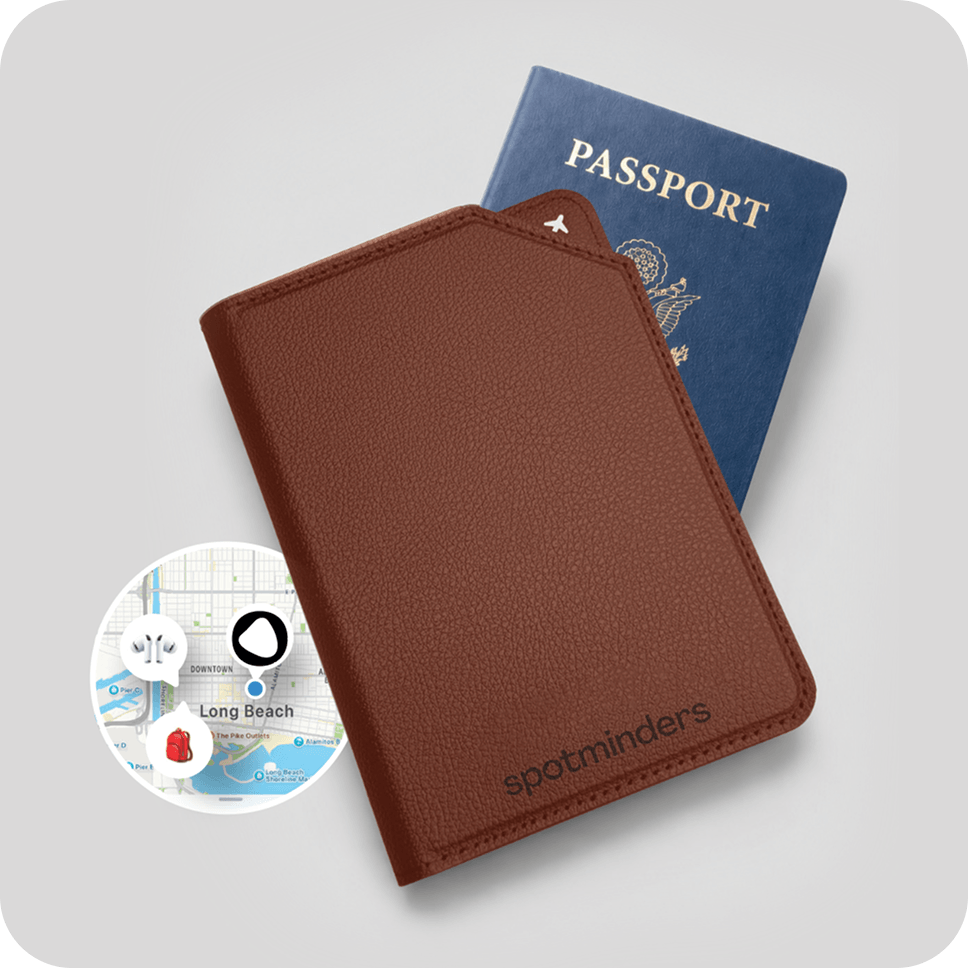
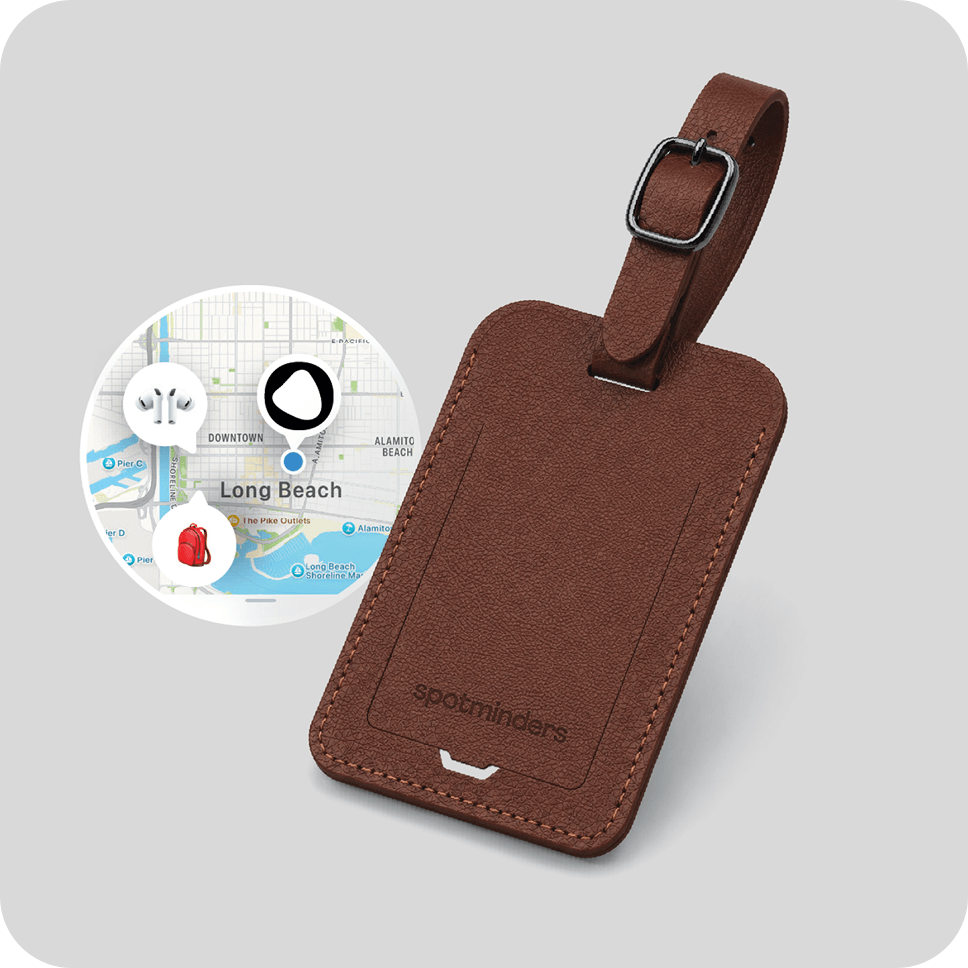
The Trackable Luggage Tag is not a live GPS tracker. Its location updates when a nearby Apple device detects it.
- Open Find My and select Items.
- Select your Trackable Luggage Tag
- Check the location and the "last seen" time shown on the map.
- If it has not updated, wait and check again later.
Updates happen more frequently in busy areas and take longer in quiet or remote locations. This is normal Find My behaviour.

Use this when the item is nearby but not visible.
- Open Find My and select Items.
- Select your Trackable Luggage Tag.
- Tap Play Sound.
- Follow the sound to locate the item.

Your Trackable Luggage Tag arrives pre-charged and ready to use for 8 months.
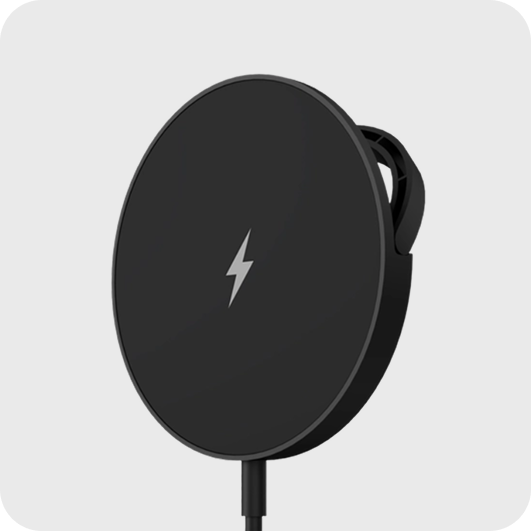
- Place the left side of your Trackable Luggage Tag over the center of the charger.
- A red light means your Trackable Luggage Tag is charging.
- Remove your Trackable Luggage Tag once charging is complete.
Placement needs to be precise. Slowly adjust the left side of your Trackable Luggage Tag until the red light stays steady. If a fully charged Trackable Luggage Tag briefly shows red when placed back on the charger, this is normal and it will return to green shortly.

Your Trackable Luggage Tag uses Apple's Find My network. An unwanted-tracking alert can appear when an unfamiliar Find My item seems to be moving with someone.
- Open the alert on your phone.
- Tap the option to play a sound and locate the item.
- If you do not recognise it, follow the safety instructions shown by Apple.

The Trackable Luggage Tag connects through Apple Find My and must be set up using an iPhone or iPad. Once paired, you can track it from any Apple device signed into the same Apple ID, including iPhone, iPad, and Mac. It is not compatible with Android.
What our customers track most
See the everyday belongings most commonly protected with a Spotminders Trackable Luggage Tag.

Backpacks

Luggage

Camera Bag

Golf bags.
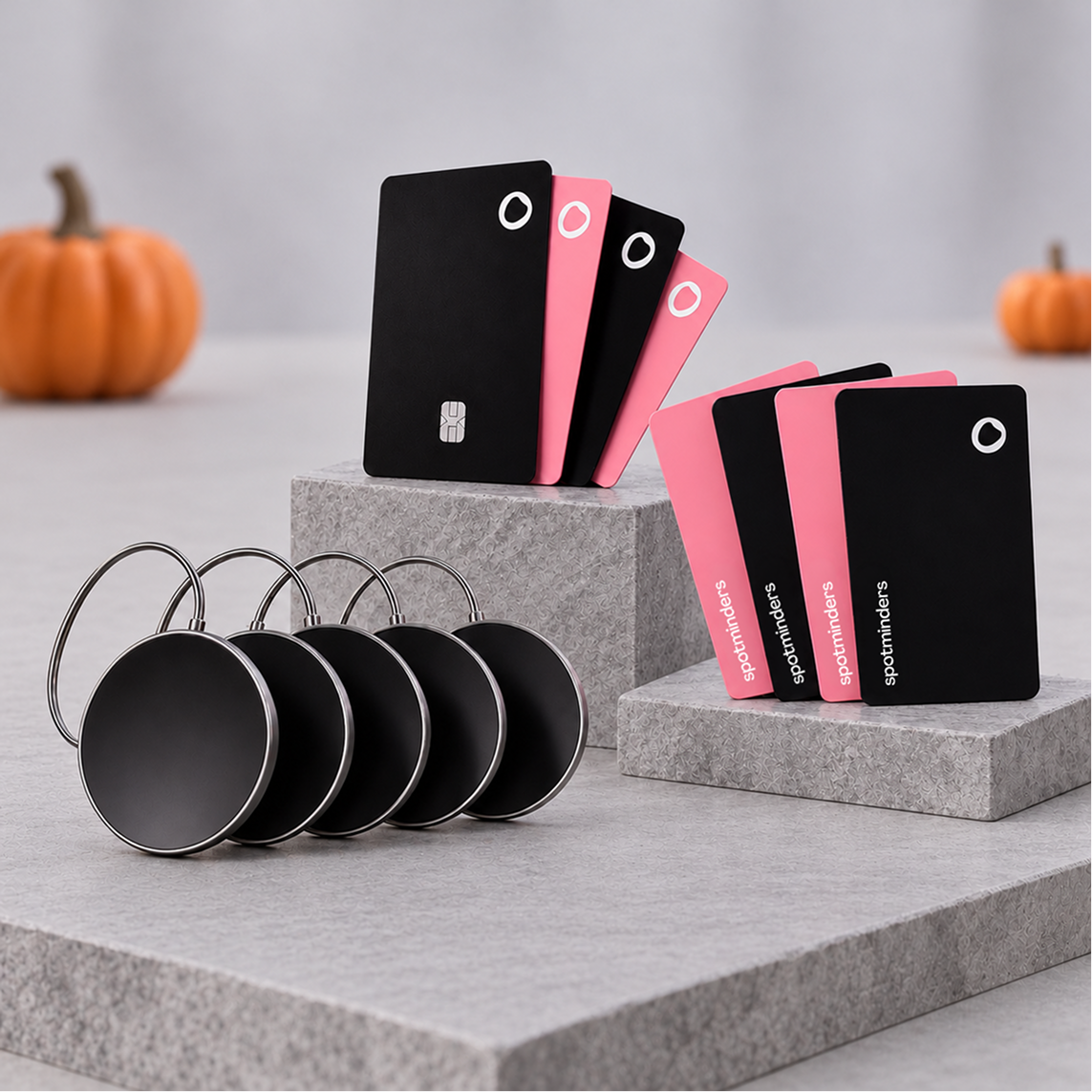
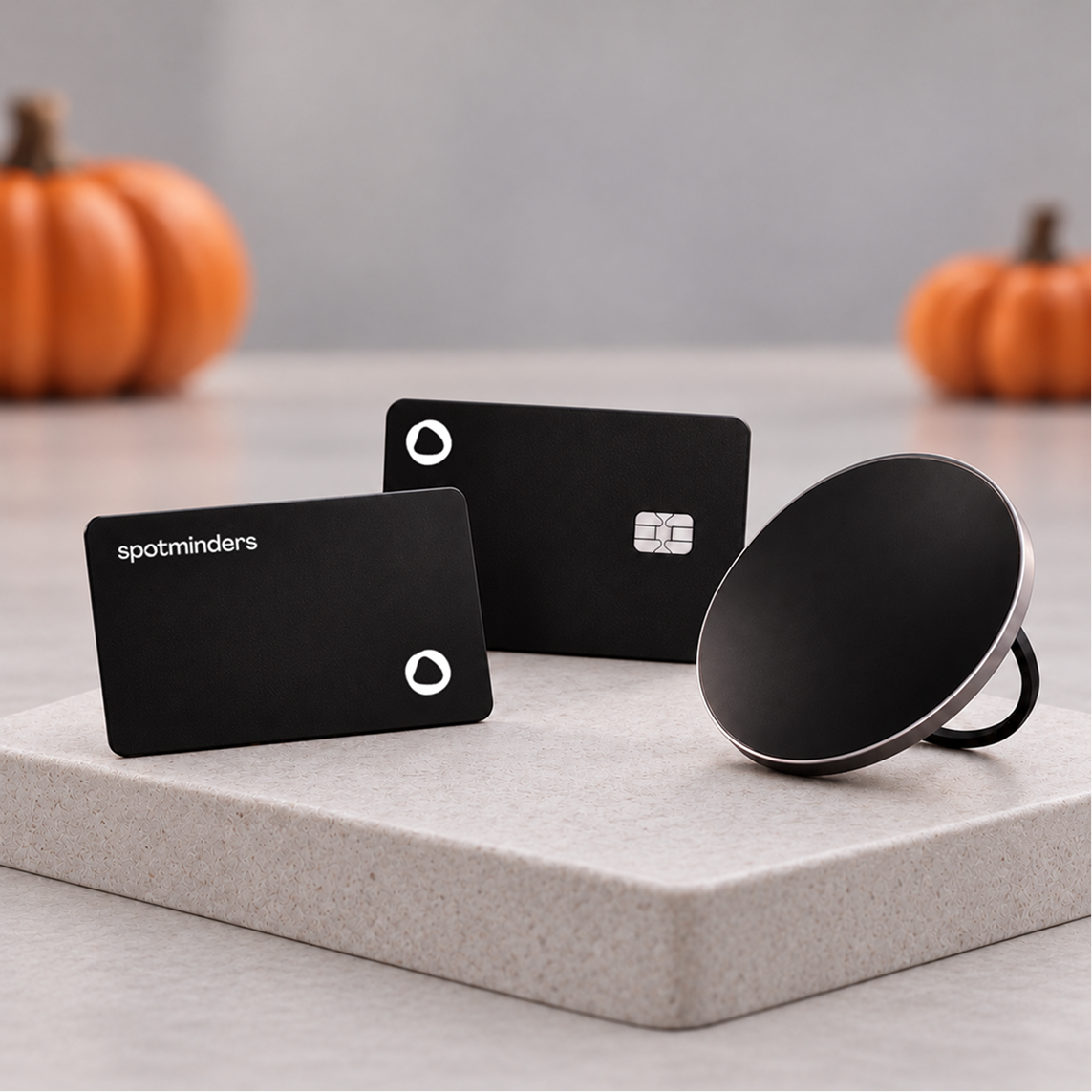
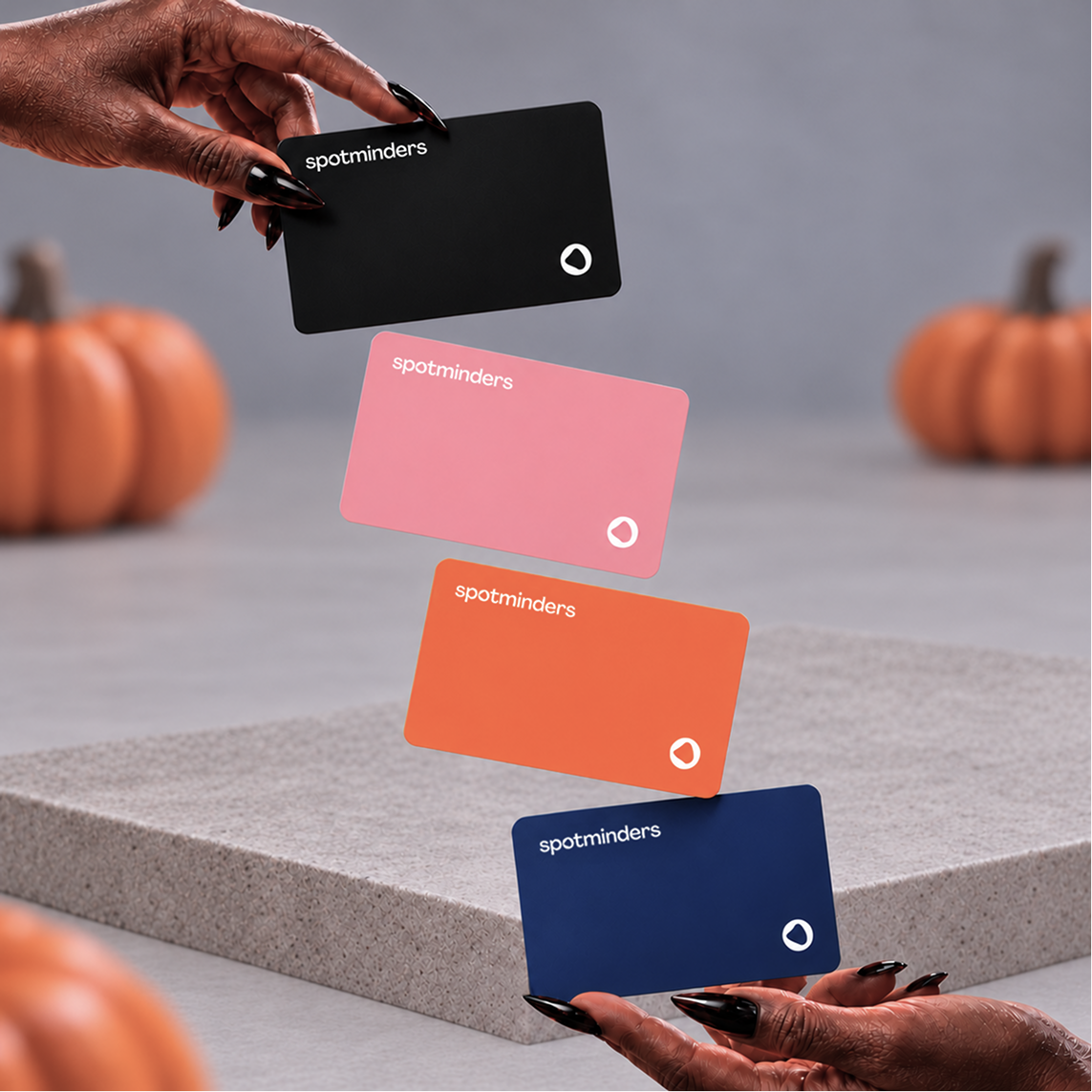
The Minder for Every Moment

 Halloween Special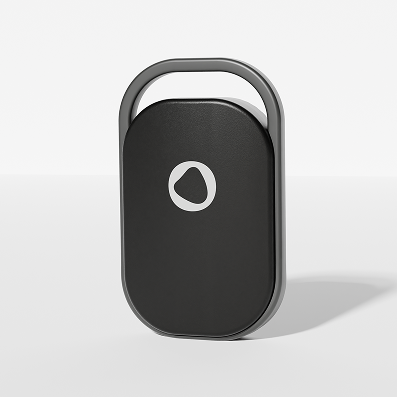


Still need help?
Contact support with your order number and steps tried.
 Email support
 Visit help center

Josh is here to help.
Get immediate help from our dedicated chat specialist.